
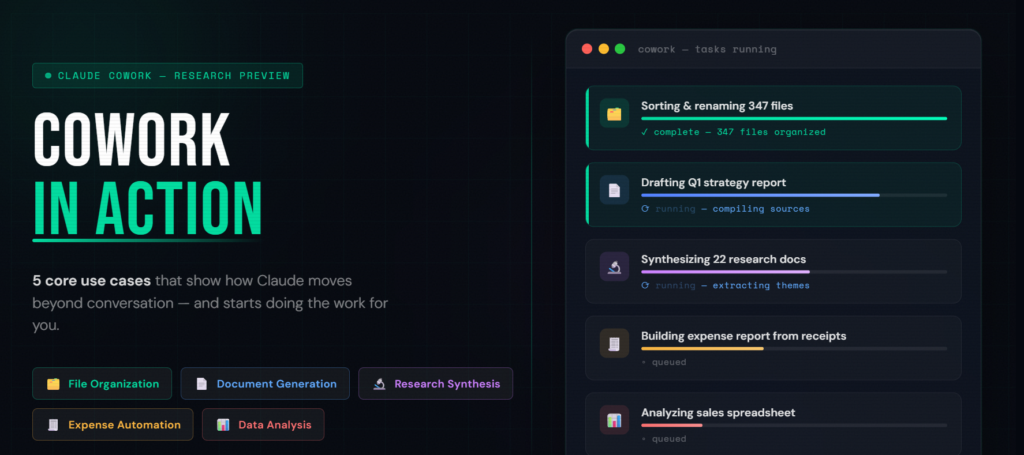
Most AI tools are great at telling you what to do. Claude Cowork is different — it actually does it for you.
Since Anthropic launched Cowork in January 2026 as a research preview, the response from knowledge workers, researchers, and business professionals has been striking. People aren’t just impressed by the technology; they’re reporting real, measurable time savings on the exact tasks that quietly drain their days — the file chaos, the expense reports, the “can someone just put all this into a proper document?” requests that never quite make it to the top of the to-do list.
This post walks through the five core use cases where Cowork genuinely delivers, what’s possible with each, and how to get the most out of each one.
1. File Organization — Sorting, Renaming, and Restructuring Your Local Files
Let’s start with the one that immediately wins people over.
If you’ve been using a computer for any length of time, you have at least one folder that’s become a black hole — a Downloads folder full of PDFs with names like final_FINAL_v3_revised.docx, screenshots labeled IMG_4821.png, and installers for software you stopped using two years ago. Most people know they should organize it. Nobody actually does, because it takes hours.
Cowork handles this in minutes, and the difference from regular AI chat is stark. In a normal Claude conversation, you’d get suggestions — a recommended folder structure, a naming convention — and then you’d have to implement it all yourself. In Cowork, you grant folder access, describe what you want, and Claude executes it directly on your file system.
But here’s what makes Cowork genuinely impressive compared to a simple “sort by file type” approach: Cowork reads file contents, not just filenames. That means a screenshot named IMG_4521.png isn’t automatically dumped into an “Images” folder — Claude can see it’s a receipt from a vendor and route it to a receipts subfolder instead. A PDF simply called document_17.pdf can be identified, read, and renamed based on what’s actually inside it.
Users have reported organizing 300, 400, even 500-file folders in under ten minutes — work that would have consumed an entire afternoon manually. The key is being specific in your instructions. Rather than “organize my folder,” something like: “Sort files into subfolders by type — documents, images, spreadsheets, and other. Rename each file with a YYYY-MM-DD date prefix where a date is identifiable. Create an Archive subfolder for anything older than 12 months. Don’t delete anything.”
That level of specificity gives Claude a clear definition of “done” and eliminates guesswork.
2. Document Generation — Drafting Reports, Proposals, and Presentations from Your Files
Writing a report from scratch is one thing. Writing a report from a pile of existing notes, research documents, and prior drafts that live across different files on your computer is another thing entirely — and it’s the second thing that kills productivity for most professionals.
Cowork excels here because it can read all of those files simultaneously, draw connections between them, and produce a structured, polished first draft directly to your file system as a real, formatted document. Not a text response to copy-paste. An actual .docx, .pptx, or .pdf that you can open, edit, and send.
Consider what this means for something like a grant proposal. You might have a folder containing your project summary notes, prior funding applications, research data, letters of support, and budget spreadsheets. In the past, someone would spend days manually pulling all of that together into a coherent narrative. With Cowork, you describe the structure of the proposal you need, point it at your folder, and Claude reads every document in scope, identifies the relevant content from each, and drafts the proposal — formatted, sectioned, and ready for editing.
The same applies to quarterly business reports, literature reviews, client-facing presentations, strategic memos, and onboarding documents. And if you’re building a PowerPoint, Cowork doesn’t just create a flat deck — it can generate slides with branded layouts, incorporate data from your spreadsheets as charts, pull key quotes from documents as callouts, and even iterate on the design if you follow up with something as simple as “make this more visual.”
One important note: Cowork’s document outputs are first drafts, not finished products. The real time saving is in the research-gathering and structuring phase — the part that normally takes the longest. Plan on reviewing, refining, and adding your voice to whatever it produces, and you’ll find the overall turnaround on document-heavy work genuinely transformed.
3. Research Synthesis — Compiling and Summarizing Information from Multiple Documents
This might be Cowork’s highest-value use case for anyone who works with information for a living — researchers, analysts, consultants, journalists, strategists, and academics.
The core challenge of research isn’t finding information; it’s making sense of it when it’s scattered across 15 PDFs, 8 bookmarked articles, 3 sets of interview notes, and a folder of miscellaneous clippings. Turning all of that into a coherent, structured synthesis is slow, cognitively demanding work. Cowork compresses it dramatically.
When you point Cowork at a research folder, Claude reads every document — papers, notes, transcripts, web articles you’ve saved — and can synthesize the contents into a unified report with a clear argument, organized sections, and references back to the source material. It’s not just summarizing each document in turn; it’s identifying recurring themes, noting where sources agree or contradict each other, and flagging gaps or unresolved questions in the existing material.
A particularly powerful variant of this use case is transcript analysis. If you have meeting notes, interview recordings (transcribed), or lecture notes, Cowork can extract key themes, action items, decisions made, and open questions — across dozens of documents at once — and organize them into a structured output that would take a human analyst hours to produce.
Real users have reported taking a folder of 20 documents — customer interviews, survey results, support tickets, and competitor notes — and walking away with a research synthesis report in under ten minutes. The same task done manually, reading and synthesizing each document, would typically take several hours at minimum.
For this use case, your instructions should define what a good synthesis looks like: the sections you want, the angle you need, whether you want competing perspectives surfaced, and how you’d like sources referenced. The clearer your definition of the end product, the better Claude will match it.
4. Expense Report Automation — Extracting Data from Receipt Photos
Nobody enjoys expense reports. They’re a perfect storm of administrative tedium — finding receipts, squinting at faded thermal paper, typing amounts one by one into a spreadsheet, categorizing everything, checking totals. It’s the kind of task that’s easy enough to do but impossible to care about, which is why it gets pushed to the bottom of everyone’s list.
Cowork automates most of it in a way that genuinely feels like magic the first time you see it.
The workflow is simple: collect your receipt photos or scans into a dedicated folder — a mix of phone photos, email screenshots, scanned PDFs, whatever format they happen to be in — and give Cowork a clear prompt. Something like: “I have receipt photos in this folder. Create an Excel spreadsheet called expenses-february-2026.xlsx with columns for Date, Vendor, Category (using: Meals, Travel, Software, Office Supplies, Other), Amount, and Notes. Add a totals row at the bottom and a summary sheet. Mark any item where the date or amount is unclear as VERIFY.”
Claude reads each receipt image, extracts the relevant data, fills in the spreadsheet, runs the formulas, and saves the finished file. The VERIFY flag is an important detail to include — rather than guessing on unclear receipts, Cowork will flag them for your manual review, which keeps the final output accurate.
Users testing this workflow have found it particularly valuable for batch processing large volumes of receipts — end-of-quarter catch-ups, reimbursement requests covering multiple months, or simply keeping on top of monthly expense reporting without it eating an entire morning. What used to take 1–2 hours for a month’s worth of receipts often takes 5–10 minutes with Cowork doing the extraction.
The output is a real Excel file with working formulas — not a CSV you still need to format, and not a text summary you need to retype. Open it, verify the VERIFY-flagged rows, make any corrections, and you’re done.
5. Data Analysis — Processing Spreadsheets and Generating Insights
The fifth core use case is where Cowork starts overlapping with tools that used to require a data analyst or at minimum a solid working knowledge of Excel or Python.
If you have spreadsheets — sales data, survey results, financial models, project tracking logs — Cowork can open them, analyze the contents, run calculations, apply formulas, create new worksheets, build charts, and generate a written summary of what the data actually means. All from a plain-language description of what you’re trying to understand.
A practical example: you have a sales spreadsheet with 12 months of data across several products, regions, and reps. You want to know which products are trending up, which regions are underperforming, and who your top five reps are by margin, not just revenue. In standard Claude chat, you’d get a methodology — advice on which formulas to use, how to structure the analysis. In Cowork, you describe the analysis and Claude does it: adding computed columns, building a summary table, creating a bar chart, and writing a one-page findings summary as a separate document.
For teams without dedicated analysts, this is significant. Marketing managers, operations leads, and project managers who live in spreadsheets but aren’t Excel power users can now ask for sophisticated analysis in plain English and get back finished outputs they can act on or share directly.
Data transformation is equally powerful. Messy datasets — inconsistently formatted columns, missing values, mixed date formats, duplicate rows — can be cleaned and standardized through a single Cowork session. Describe what clean looks like, point Cowork at the file, and it handles the transformation. The output is a properly structured spreadsheet ready for reporting or further analysis.
One important note: Cowork runs data operations within its sandboxed virtual machine environment, and it will always save outputs as new files rather than overwriting your originals (especially if you include that instruction). Always verify computed results on complex analyses, since even capable AI can make errors on intricate multi-step calculations. But for the majority of business data tasks — summarizing, categorizing, cross-tabulating, visualizing — Cowork performs reliably and saves substantial time.
Getting Started: A Few Principles That Apply Across All Five Use Cases
Regardless of which use case you’re tackling, a few practices consistently produce better results with Cowork:
Be specific about the output. Define what “done” looks like before you start. A vague prompt produces a vague result. A precise description — including file names, column headers, section titles, or formatting expectations — produces a polished, ready-to-use output.
Use a dedicated work folder. Don’t point Cowork at your entire Documents directory or Downloads folder for the first time. Create a Cowork-Projects folder, move the relevant files in, and work from there. It’s safer, cleaner, and helps Claude focus on exactly what matters.
Include a no-delete instruction as a default. Unless you specifically want files removed, add “don’t delete anything” to every prompt until you’re comfortable with how Cowork handles your files. It’s a simple safeguard against surprises.
Treat outputs as first drafts. For document generation and research synthesis especially, expect to review and refine. Cowork handles the structural and research-heavy lifting; your judgment and expertise still shape the final product.
Whether you’re drowning in disorganized files, staring down a deadline for a multi-source report, or just sick of manually building expense spreadsheets one receipt at a time, Cowork addresses the exact pain points that eat into productive time. For knowledge workers willing to invest a little setup effort upfront, the payoff compounds with every use.
Enjoyed this deep dive into Claude Cowork? Head over to tooltechsavvy.com for more in-depth guides, practical tips, and honest takes on AI tools and the technology reshaping the way we work. There’s a lot worth exploring!