
If you’ve recently set up Claude Cowork — Anthropic’s powerful AI desktop agent — you’ve probably had one of those moments where the app asks you to select a folder and you think: Wait… which folder should I actually give it? And if you’ve used Cowork more than a few times, you may have noticed that results can vary widely depending on whether Claude “knows” what you want from it upfront.
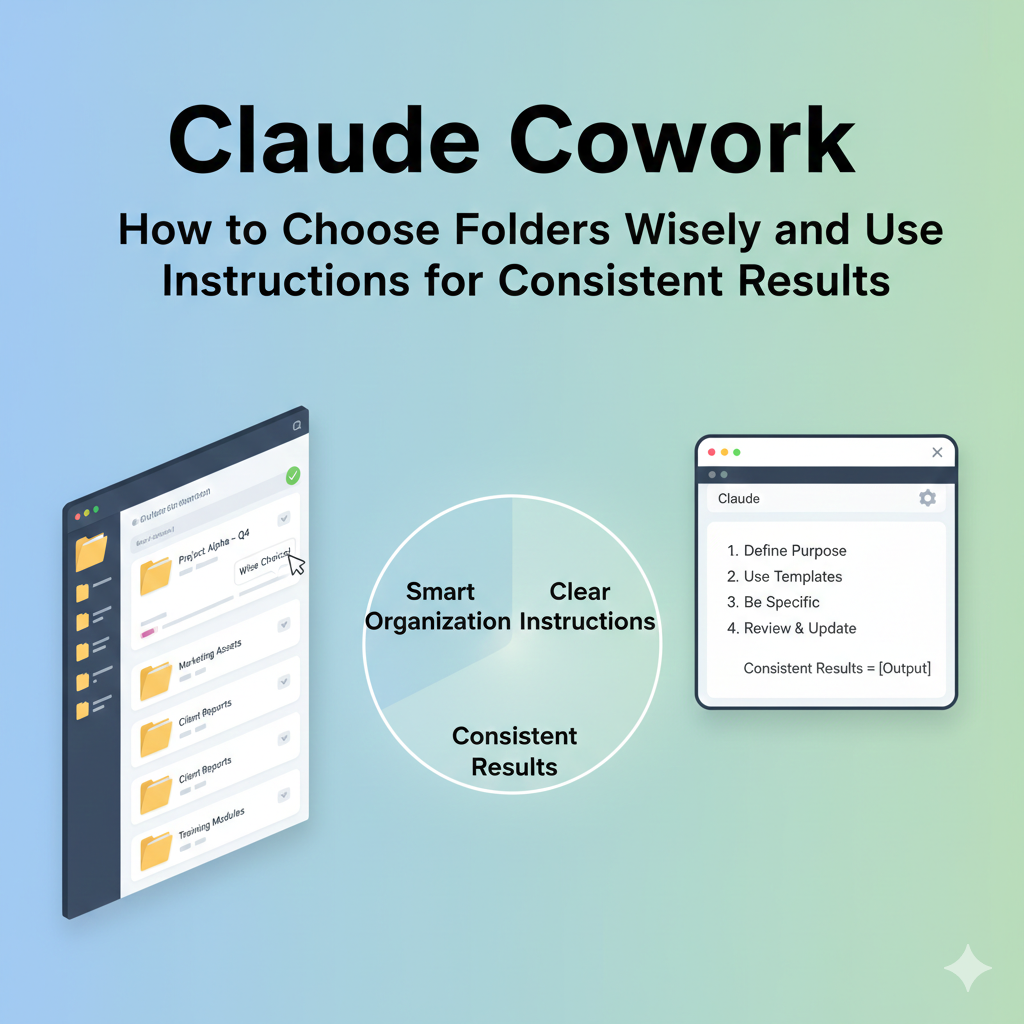
This post digs into two of the most important (and often overlooked) aspects of getting great results from Cowork: how to choose and configure your folders thoughtfully, and how to use global and folder-specific instructions to make Claude work your way, every single time.
Part 1: Choosing and Configuring Folders for Cowork
Why Folder Choice Matters More Than You Think
When you launch Cowork inside the Claude Desktop app, one of the first things you’ll see at the bottom of the interface is a “Work in a Folder” checkbox. This is the gateway to Cowork’s real power — but it’s also where things can go wrong if you’re not thoughtful about it.
Here’s the key thing to understand: Claude can only access files in the specific folder you grant permission to. It cannot read or edit anything you don’t give it explicit access to. This sandboxing is a feature, not a limitation — it means you’re always in control. But it also means the folder you select effectively defines the scope of what Claude can do for you.
The Most Common Mistake (And How to Avoid It)
The most common mistake new Cowork users make is pointing Claude at a broad, catch-all location — their entire Documents folder, their Desktop, or worse, their home directory. If you select your home directory, Claude can see everything, including financial documents, passwords, and personal files.
The fix is simple but important: create a dedicated workspace folder. Call it something like Claude-Workspace or Cowork-Projects and keep it in a location you’re comfortable with. Only move files into this folder when you want Claude to work on them. When a project or task is done, move the outputs out.
This approach gives you three big benefits:
Safety — Sensitive files never accidentally end up in scope. Your tax documents, password files, or personal photos stay completely off-limits unless you explicitly choose otherwise.
Clarity — Claude performs better when it knows exactly what it’s working with. A focused folder with relevant files produces more accurate, useful outputs than a chaotic folder full of everything.
Reversibility — Starting fresh in a dedicated folder means you can always see exactly what Claude changed, added, or reorganized. There are no surprises buried in folders you didn’t realize it could touch.
One-Time Access vs. Always Allow
When you click the folder checkbox in Cowork and select a folder, a permissions dialog appears asking Claude to access that location. You can grant one-time access or choose “Always Allow” for folders you’ll use repeatedly.
Use one-time access when you’re trying something new, working on a sensitive project, or testing Cowork for the first time. Use Always Allow for your regular Cowork workspace folder once you’re comfortable and have confirmed it contains only what you want Claude to see.
Structuring Your Cowork Folder for Different Projects
Once you’ve created your dedicated workspace, consider organizing it by project rather than dumping everything in one place. Here’s a simple structure that works well:
Claude-Workspace/
├── receipts-and-expenses/
├── meeting-notes/
├── research-projects/
│   ├── project-alpha/
│   └── project-beta/
└── reports-and-drafts/
This structure lets you point Cowork at a specific subfolder for a task — say, just the receipts-and-expenses folder when you need an expense report — rather than the entire workspace. The more tightly scoped the folder, the less chance of Claude doing something unexpected to unrelated files.
A Word on Sensitive Files
Even within a dedicated workspace, keep a few principles in mind: never put files containing passwords or credentials in any Cowork folder. If you’re working with financial documents that contain account numbers, consider whether you actually need Claude to have direct access, or whether you can summarize or redact the sensitive parts manually first. Always back up any important files you’ll give Claude access to before starting a Cowork session.
Part 2: Global and Folder-Specific Instructions for Consistent Results
This is where Cowork starts to feel genuinely powerful — and where most users leave a lot of value on the table.
What Are Instructions in Cowork?
Cowork supports two layers of standing instructions that you set once and that apply automatically every time you work:
Global instructions apply to every Cowork session, regardless of what folder you’re working in or what task you’re doing. Think of these as Claude’s baseline understanding of who you are and how you like to work.
Folder instructions are project-specific and kick in automatically whenever you select a particular folder. They give Claude context about what that folder is for, what the expected outputs look like, and any special rules that apply to that project.
You can also update either one right from the chat during an active session, which means you don’t have to stop and go into Settings every time you realize Claude needs a bit more context.
Setting Up Your Global Instructions
To set your global instructions, navigate to Settings > Cowork within Claude Desktop, click “Edit” next to Global instructions, type your instructions in the text box, and click “Save.”
Think of this as your permanent briefing to Claude. Here’s what’s worth including:
Your role and context. Claude produces much better outputs when it knows who you are. Something like: “I’m a marketing manager at a B2B software company. Our audience is enterprise IT and procurement teams.” This shapes everything from the language Claude uses in documents to the assumptions it makes about your goals.
Your preferred output formats. If you always want documents in a specific structure — executive summary first, then details, then action items — say so here. If you prefer plain language over jargon, or want bullet points kept to a minimum, this is the place to set that expectation.
Your tone preferences. Professional but conversational? Formal and precise? Technical or accessible? Specifying this upfront prevents Claude from making random choices about voice and style across different sessions.
Standing constraints. If there are things Claude should never do without asking you first — like deleting files, overwriting existing documents, or creating new folders — put those rules here. For example: “Never delete any files. Always save new outputs with a new filename rather than overwriting the original.”
A well-written global instruction set might look something like this:
I’m a freelance consultant specializing in financial analysis. My clients are small business owners with limited financial literacy. Always write in plain, jargon-free English. For any documents, use this structure: Summary (3 bullet points max), Findings, and Recommendations. When creating spreadsheets, always include a “Notes” column. Never delete files — save outputs as new files with today’s date in the filename.
That’s a simple example, but even this level of context will dramatically improve the consistency of Claude’s outputs across every session.
Setting Up Folder Instructions
Folder instructions add a second layer of project-specific context. Folder instructions add project-specific context to Cowork when you select a local folder, and Claude can also update these on its own during a session.
This is especially useful when you have multiple ongoing projects with different requirements. For example:
A receipts folder might have instructions like: “This folder contains receipt screenshots and PDFs for expense tracking. When working here, always create an Excel file with columns for Date, Vendor, Amount, Category, and Notes. Categorize expenses using these categories: Travel, Software, Office Supplies, Meals, and Other.”
A research folder might have instructions like: “This folder contains research notes, articles, and interview transcripts. Outputs should be structured reports with a clear thesis, supporting evidence, and cited sources. Always create a separate summary document alongside the full report.”
A client project folder might include: “This is the project folder for [Client Name]. Always use their company name in document headers. Brand colors are navy blue and gold. Reports should follow the company’s quarterly review template structure.”
The key difference from global instructions is specificity. Global instructions are about you and your general preferences. Folder instructions are about this project, these files, and what success looks like here.
Tips for Writing Effective Instructions
Be explicit about what “done” looks like. Don’t just say “summarize my notes.” Say “create a 1-page summary with three sections: Key Findings, Open Questions, and Suggested Next Steps.” Claude follows specific outcome definitions much more reliably than vague ones.
Include examples where possible. If you want a specific filename format — say, 2026-02-19_ExpenseReport_February.xlsx — spell out the pattern exactly. Claude is excellent at following examples.
Say what NOT to do. Always include constraints explicitly — for instance, “don’t delete anything” unless you specifically want deletions. Negative constraints are just as important as positive ones.
Iterate over time. Your instructions don’t need to be perfect on day one. After each Cowork session, spend two minutes noting what Claude did that surprised you or didn’t match your expectations, then update your instructions accordingly. Over a few weeks, you’ll build up a finely tuned profile that produces remarkably consistent results.
Putting It All Together
Here’s a quick-start checklist to set yourself up properly:
Folder setup:
- Create a dedicated
Claude-Workspacefolder in a safe location - Organize it into project subfolders
- Keep sensitive files (passwords, financial accounts, personal data) in separate locations that Cowork never accesses
- Back up anything important before your first session
Global instructions:
- Open Settings > Cowork > Edit Global Instructions
- Write 3–5 sentences covering your role, preferred tone, output format, and standing rules
- Include explicit constraints (no deleting files, always save as new files, etc.)
Folder instructions:
- For each active project folder, add a brief description of what it contains and what good outputs look like
- Include specific formatting, naming conventions, or structure requirements unique to that project
- Update them as the project evolves
Done right, this combination turns Cowork from an impressive-but-inconsistent tool into something that genuinely feels like a well-briefed assistant who already knows your preferences before you say a word.
At ToolTechSavvy, we dive deep into AI tools, emerging tech, and practical guides that help you build smarter — whether you’re a developer, creator, or curious mind. From the latest AI releases to hands-on tutorials, there’s always something worth reading.