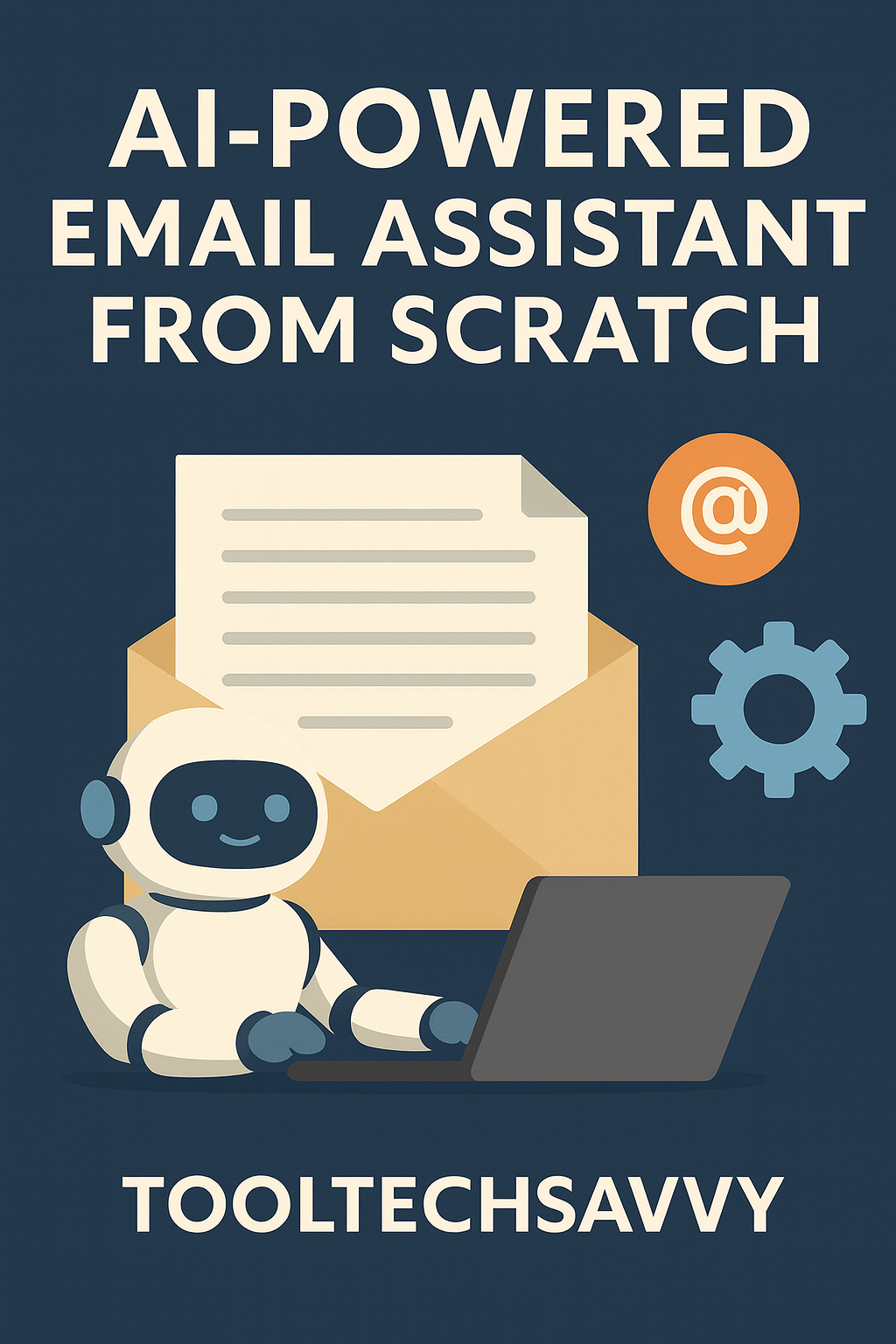
If you’ve ever wished you had a personal email assistant—one that sorts, summarizes, drafts, and replies automatically—you’re not alone. Email overload is one of the biggest productivity killers. The good news? With today’s free AI tools, you can build your own AI-powered email assistant from scratch, without coding or spending a single dollar.
This guide walks you through the exact system, step by step. It’s inspired by the automation techniques in:
Let’s build your assistant.
Tools You’ll Need (All 100% Free)
Gmail (or any email provider)
Zapier Free Plan
OpenAI GPT-4o Mini or Gemini 1.5 Flash (both free tiers available)
Google Sheets (optional but helpful)
Notion (optional, also free)
This setup costs $0 and can be expanded later into full automations.
Step-by-Step: Build Your Free AI Email Assistant
STEP 1 — Decide What Tasks Your AI Should Handle
Think of your assistant like a real employee. It needs a job description.
Common tasks:
- Summarize new emails
- Classify emails (urgent, billing, personal, sales, support)
- Draft replies
- Auto-respond to certain senders
- Extract details (dates, amounts, names, links)
- Add reminders or tasks to Notion/Google Sheets
- Flag important emails
If you’re unsure what to automate first, see:
The Best Free AI Tools for Daily Use
STEP 2 — Create a Master Prompt for Your Email Assistant
Your AI assistant needs consistent instructions.
Here’s a ready-to-use master prompt:
You are my AI email assistant. Your tasks:
1. Summarize incoming emails clearly in under 120 words.
2. Identify the category: urgent, important, low priority, personal, promotional, or spam.
3. Suggest 1–2 reply options in my tone: friendly, concise, and professional.
4. Extract key details such as dates, deadlines, action items, and sender intent.
5. If asked to draft a reply, keep it short and actionable.
Never hallucinate. If information is missing, ask for clarification.
Save this in Notion or Sheets. You’ll reuse it often.
STEP 3 — Connect Gmail to Zapier (Free Tier)
- Go to Zapier.com
- Click Create Zap
- Trigger: Gmail → New Email in Inbox
- Filter (optional):
- Only emails from specific senders
- Emails with certain keywords
- Only unread emails
Learn advanced filtering here:
How to Use Zapier Filters & Paths
STEP 4 — Send the Email Body to an AI Model
Your next Zap step:
Action → OpenAI (or Gemini) → Send Prompt
Prompt example:
Using the master prompt, analyze the following email:
"{{Email Body}}"
Choose GPT-4o Mini, GPT-3.5 Turbo (free tier), or Gemini Flash for zero cost usage.
STEP 5 — Store AI Output for Easy Review (Optional but Recommended)
Some free options:
Option A — Store in Google Sheets
Columns you can add:
- Date
- Sender
- Summary
- Category
- AI Suggested Reply
- Priority
- Follow-Up Needed
This creates your email command center.
Option B — Store in Notion
Use Notion’s free API (through Zapier).
Perfect for:
- CRM-style tracking
- Team inboxes
- Support email management
See:
The Best Free Notion Templates
STEP 6 — Auto-Draft Replies (Optional)
Add a Zap step:
Action → Gmail → Create Draft
Use the AI output:
Example:
Subject: Re: {{Email Subject}}
Body: {{AI Suggested Reply}}
This speeds up your workflow dramatically.
For tone consistency, revisit:
Role-Based Prompting
STEP 7 — (Optional) Add Auto-Replies for Specific Scenarios
Examples:
Auto-Reply 1 — “I’ll Get Back Soon”
Great for client emails.
Auto-Reply 2 — “Support Ticket Received”
For support inboxes.
Auto-Reply 3 — “Booking/Order Acknowledged”
For freelancers, coaches, solopreneurs.
Be careful not to create loops—use Zapier filters such as:
- Sender is not me
- Subject does not contain “Re:”
- Only first message in thread
STEP 8 — Add Priority Alerts (Optional)
Send yourself alerts only when necessary using:
- Telegram
- Slack
- Gmail star
- Pushbullet
Example automation:
If category = Urgent → Send Slack Notification
This aligns with techniques discussed in:
AI Copilot Updates 2025
STEP 9 — Test Your Assistant
Send yourself a few test emails:
- a long email
- a short email
- an inquiry
- a complaint
- a scheduling message
Check:
- Accuracy
- Tone
- Extraction quality
- Draft responsiveness
Tune the prompt if needed.
STEP 10 — Expand Your Assistant (Optional Upgrades)
Once comfortable, add advanced features:
Add a RAG system to answer emails based on your knowledge base
Add multi-agent support
Ref:
AI Agents Guide
Build a full automation dashboard
Final Takeaway
You’ve just built a fully functional, no-cost AI-powered email assistant.
It can:
- Summarize emails
- Categorize them
- Draft replies
- Store insights
- Trigger follow-ups
- Reduce inbox stress
All without coding. All for free.
Your inbox is now an automated productivity machine.