
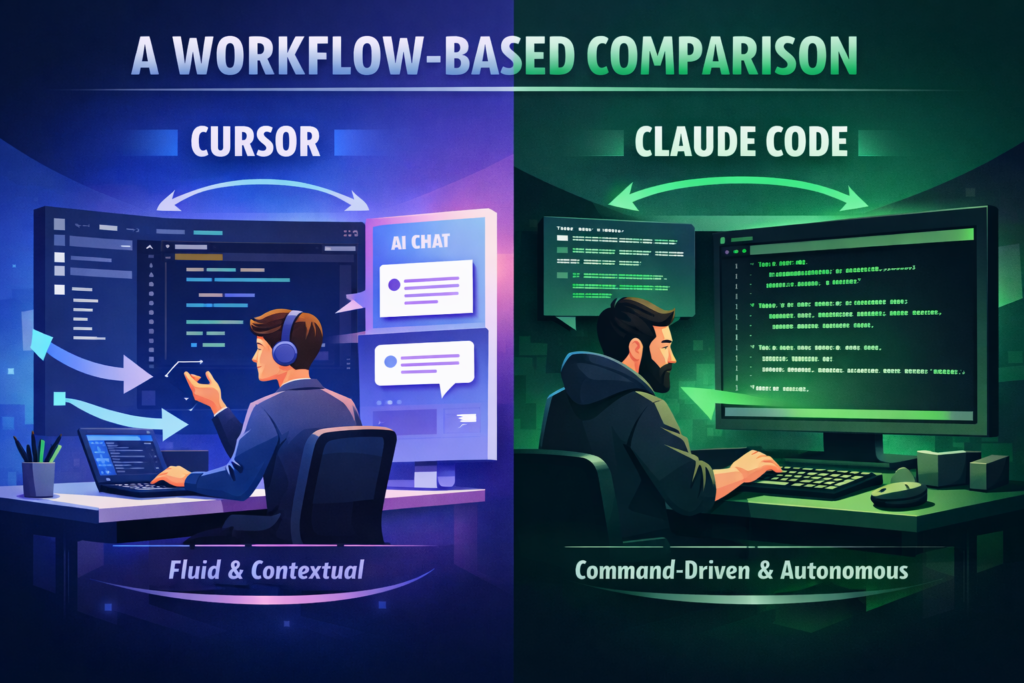
It Starts With Where You Spend Your Day
Before comparing features, answer this honestly: when you’re deep in a project, where does your focus live? Are you reading diffs in a file explorer, jumping between tabs, leaning on syntax highlighting and inline error squiggles? Or are you comfortable running git grep, piping output, and orchestrating scripts from a shell prompt?
That instinct — GUI vs. command line — is the single most important factor in choosing between these two tools. Both are genuinely excellent. But they’re designed for two very different mental models of what “working in code” looks like.
A fork of VS Code with deep AI integration baked in. Your entire editor becomes AI-aware — autocomplete, inline edits, multi-file context, and an Agent mode that can run terminal commands on your behalf.
- ✓ Visual diff review with one-click accept/reject
- ✓ Tab autocomplete across your whole codebase
- ✓ Inline chat at the cursor position
- ✓ GUI-first: no terminal required
- ✓ Familiar VS Code extension ecosystem
Anthropic’s command-line agent for software engineering. It reads your codebase, writes and edits files, runs commands, manages git, and solves complex multi-step problems — all from your terminal, with your existing editor alongside.
- ✓ Deep codebase understanding via file reads
- ✓ Runs shell commands natively
- ✓ Works with any editor (Vim, Neovim, Emacs, VS Code)
- ✓ Headless and scriptable for CI/CD workflows
- ✓ Powerful for large-scale refactors
Where Does Your Workflow Sit?
Think of AI coding tools on a spectrum from fully GUI-driven on one end to fully terminal-native on the other. Cursor and Claude Code each anchor a different zone — but with some important overlap in the middle.
Interestingly, both tools have made moves toward the centre. Cursor has an Agent Mode that can execute terminal commands on your behalf. Claude Code can open a browser session and has integrations that surface its output in editors. But their native home is still squarely on opposite ends.
Claude Code vs Cursor Agent Mode: Side-by-Side
Both tools now have an “Agent” mode — the ability to plan multi-step tasks, use tools, and execute code. This is where the comparison gets most interesting, and most nuanced.
| Dimension | 🖱️ Cursor Agent Mode | ⚡ Claude Code |
|---|---|---|
| Interface | GUI panel inside VS Code / Cursor | Native terminal, any shell |
| Context window | Pulls relevant files automatically | Reads full repo on demand; larger context |
| Code review UX | Visual diffs, inline accept/reject buttons | Shows diffs in terminal; needs separate viewer |
| Command execution | Agent can run terminal commands via GUI | First-class; runs bash, git, test suites natively |
| Multi-file edits | Supported — IDE shows changes file by file | Supported — walks repo and edits across files |
| Autocomplete | Continuous, predictive tab complete in editor | No continuous autocomplete; task-based |
| Model choice | GPT-4o, Claude 3.5/3.7, Gemini (switchable) | Exclusively Claude (Opus/Sonnet) — latest versions |
| Scripting / CI use | Possible but not idiomatic | Native support for headless / non-interactive runs |
| Setup complexity | Download and open; VS Code familiarity helps | Requires Node.js + Anthropic API key + CLI comfort |
| Large-scale refactor | Good; visual feedback helpful | Excellent; designed for long-running, complex tasks |
| Cost model | Subscription ($20/mo Pro); token limits apply | Pay-per-token via API (predictable for power users) |
| Editor lock-in | Requires Cursor (VS Code fork) | Works alongside Vim, Emacs, VS Code, anything |
The pattern is clear: Cursor wins on visual polish and continuous assistance. Claude Code wins on depth, flexibility, and agentic power — especially when tasks get complicated or span many files.
The best AI coding tool isn’t the most powerful one. It’s the one that fits how you already think about code.
— ToolTechSavvyWho Should Use Which Tool?
Let’s make this concrete. Here are six developer personas and a direct verdict for each.
Loves syntax highlighting, diff views, and clicking through errors in a file tree. Feels anxious in a terminal. Wants AI that shows up inline, not via prompt.
Use CursorLives in Neovim or runs everything via scripts. Wants the AI to behave like a senior engineer they can pipe tasks to, not a GUI overlay.
Gets things done but isn’t a full-time engineer. Needs AI that explains, suggests, and lets you accept changes safely without scripts or shell confidence.
Use CursorFrequently migrates large codebases, renames patterns across hundreds of files, or upgrades frameworks. Needs an agent that can plan and execute at scale.
Use Claude CodeComfortable in terminal but values IDE features. May want Cursor for day-to-day coding and Claude Code for heavy-lift tasks, CI/CD, or codebase-wide operations.
Use Both StrategicallyWrites Dockerfiles, manages infra-as-code, and scripts everything. Needs an AI that can actually run commands in context, not just suggest them in a panel.
Use Claude CodeGetting the Most Out of Each Tool
If you’re starting with Cursor
The Cmd+K inline edit shortcut is your best friend. Use it on small, scoped changes. For bigger tasks, switch to Agent Mode (the chat panel) and give it explicit instructions about which files to touch. Enable “auto-accept on run” only once you trust the output on a given type of task.
.cursorrules (a project-level config file) to define your conventions — naming patterns, tech stack preferences, testing style. This dramatically improves suggestion quality on your specific codebase.If you’re starting with Claude Code
Start with a single, well-scoped task: “add error handling to all API routes in /src/api“. Watch how it explores the codebase before writing code — that context-gathering is where Claude Code earns its keep. Use /clear between tasks to keep the context window clean.
CLAUDE.md file in your repo root acts as persistent context — project structure, conventions, what not to touch. Invest 20 minutes writing it once and every future session starts with Claude already oriented.Running them together
Some developers use Claude Code for the “thinking and architecture” work (designing the approach, generating scaffolds, doing large refactors) and Cursor for the “flow state” work (finishing methods, inline debugging, quick iterations). There’s no rule against having both installed — they serve genuinely different moments in a coding session.
The Honest Verdict
Cursor is a world-class tool for developers who think visually. If you’ve invested in VS Code’s ecosystem, like watching AI changes appear inline, and want continuous autocomplete woven into every keystroke — Cursor is the easier, faster, more comfortable choice. Its Agent Mode is genuinely capable, and its UX is beautifully considered.
Claude Code is the right choice if you’re comfortable in a terminal, work on complex or large-scale codebases, need to integrate AI into scripts and automation pipelines, or want to use the very latest Claude models without routing through a third-party UI. Its agentic depth is hard to match — and it has no editor lock-in whatsoever.
The productivity ceiling of both tools is remarkably similar. What differs is the path to getting there. Cursor’s path is paved and well-lit. Claude Code’s path rewards developers who are willing to do a bit more configuration work in exchange for raw power and flexibility.
The real question isn’t which tool is better. It’s which one fits the mental model you already have when you sit down to code.
Want More Honest AI Tool Reviews?
ToolTechSavvy breaks down tools for developers, PMs, and designers — no hype, just practical takes you can act on. Explore more comparisons, tutorials, and deep dives.
Read More at ToolTechSavvy ↗ tooltechsavvy.com